Ever faced the “D Drive Missing” error on your Windows computer? Wondering why is your D drive not showing up? If so, you’ve come to the right place. It can be a frustrating experience when you are unable to access important files stored on the D drive. Sometimes, it’s not just the D drive – even the E or F drive might decide to play hide and seek without any warning. In this article, we’ll delve into the reasons behind this problem, explore effective solutions, and guide you on how to recover data from the missing D drive.
When the D drive is not showing up in File Explorer or Disk Management, there’s no need to worry. First of all, you need to confirm whether the D drive is another hard disk in your computer or a partition of your current hard disk.
If the D drive is just a partition of your current hard drive, it’s likely because the drive letter D is being used by another device (like USB drive). However, if the D drive is a separate hard drive in the computer, the “D drive missing” error may be due to various reasons. Here are some commone ones:
There are various methods to fix the issue of the D drive not showing up. However, the bad news is that you may risk losing some important files stored on it. While there are many data recovery software options available in the market, Tenorshare 4DDiG stands out as the clear winner. This user-friendly tool is specifically designed to recover deleted, lost, or inaccessible files from over 2000 storage devices. No matter the reason for your data loss, it is the most reliable assistant.
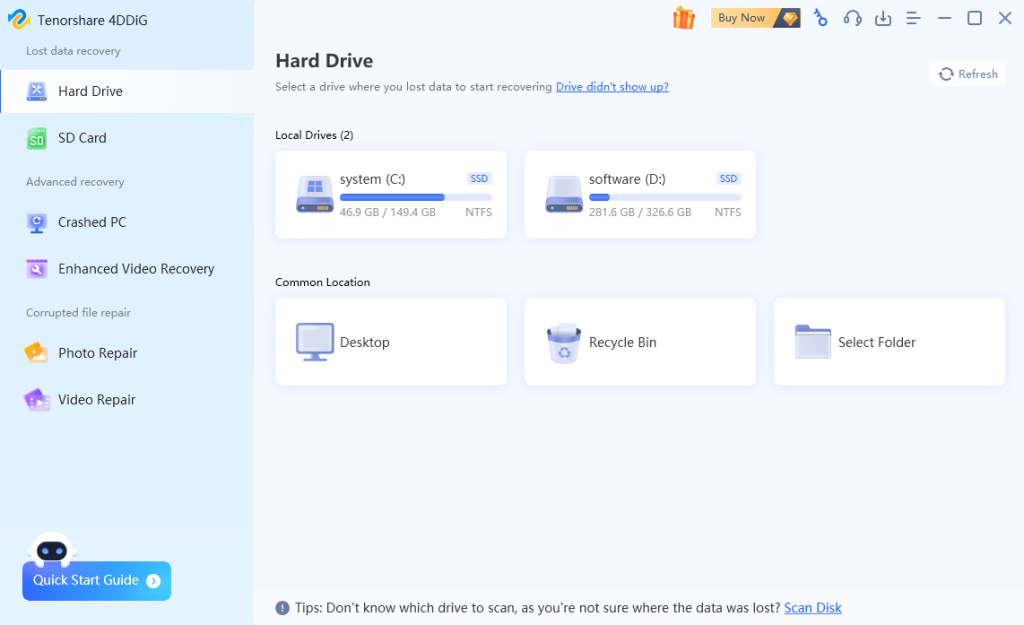
Step 1: First, download and install Tenorshare 4DDiG from the official website. Then, launch the program and select the D drive to scan.
Step 2: 4DDiG offers two scanning options – Quick Scan and Deep Scan. While Deep Scan takes more time, it can detect a greater number of lost files within the D drive.

Step 3: After the scan is complete, 4DDiG automatically lists the files that are lost or deleted on the D drive. Select the files you want to restore and click the “Recover” button. Remember not to save the recovered files again on the D drive.
